Is It Safe to Let AI Make Changes to Your Website?
What I learned letting Claude edit client websites: a site builder with no back door, a plugin that updated itself and 275 link edits in one batch.
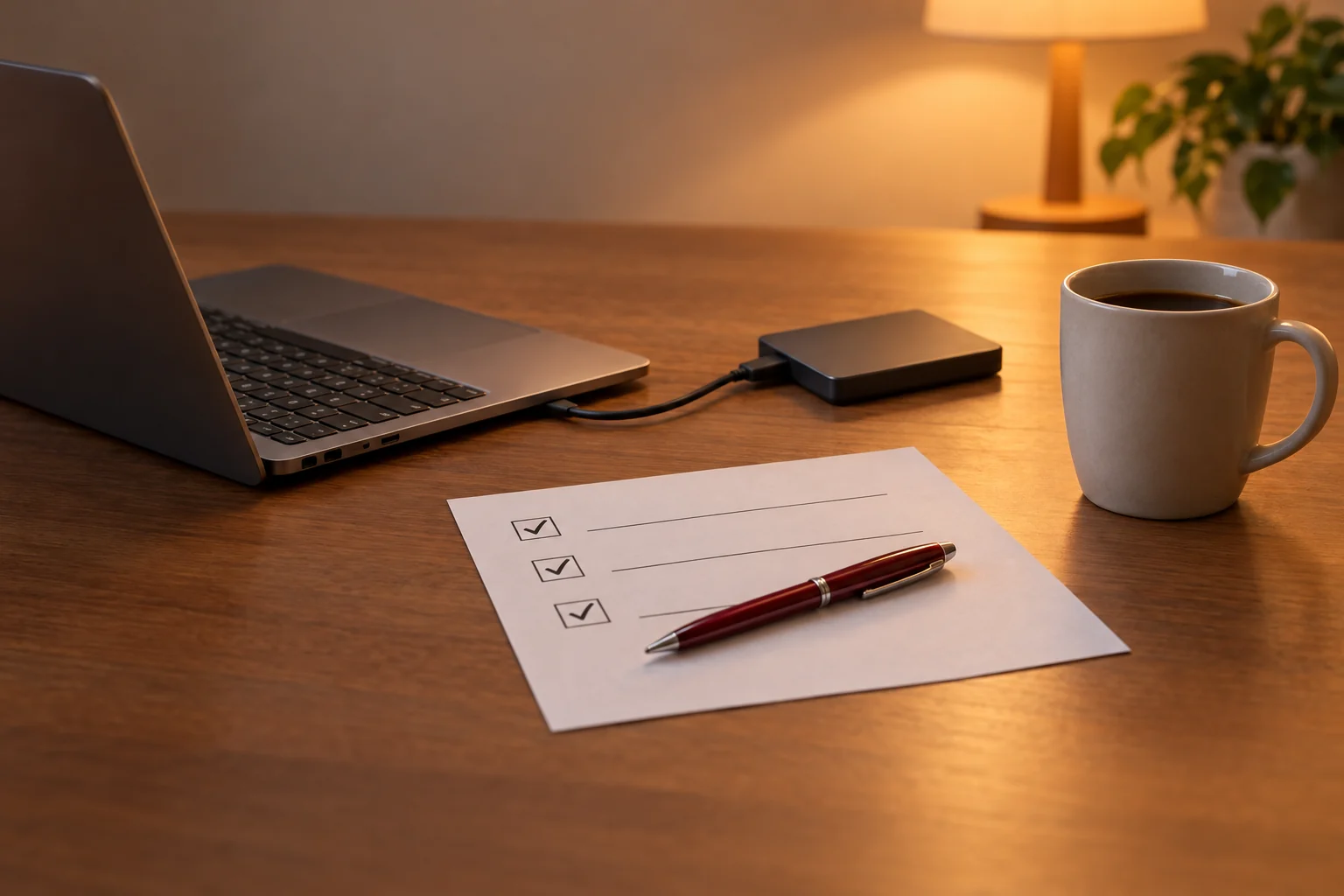
Yes, in my experience, as long as three things stay in your hands: a backup taken before anything changes, proof that each edit saved and the publish button. I've had Claude make every edit on a client's website through the same editing screen a person uses, while I reviewed and pressed publish. AI is good at the clicking and the repetitive edits. Its mistakes tend to sit at the edges, like a link cut off in the middle of a word or a change that looked saved on screen and wasn't. So check each change on the live page, the way a visitor sees it, before you call it done.
Key takeaways
- Take a backup before the first edit, and know how you'd restore it.
- Try one small change before handing over a whole list.
- Reload the editor and check the live page, because the editing screen and the public page can differ.
- In my big batch of edits, the AI's mistakes sat at the edges of each change.
- Keep the publish button with a person, and name every check you want done.
Can AI edit a website that has no plugin or API?
Yes. On one client's site, Claude worked through the visual editor, the same screen a person would use. There was no plugin, which is an add-on that gives a website extra features. There was also no API, a way for software to talk directly to the site.
From October 28 through October 30, 2026, I used Claude Code in the Claude desktop app to make the changes through its built-in browser. I signed in myself. Claude did every edit. My part was reviewing the work, catching what the list missed and pressing publish.
The editing took about two hours spread across three evenings. The work included updating social media links, changing 12 headings to Title Case (a capital letter on each main word), adding the business's legal name to its Privacy and Terms pages and cleaning up the footer. It also included a new order page for ads.
Before touching the content, Claude saved a full backup using the editor's own backup tool. Then it tried one paragraph. Clicking the text selected the whole block, so typing would have wiped it. Claude backed out and checked that the undo button was still gray, meaning nothing had changed.
So I'd start with that same small test. Ask the AI to change one sentence, then stop while you check it.
Also ask for full editor access at the beginning. My first login could change existing pages but couldn't add a new one. That held up the order page until the access changed. For an order page you're preparing for ads, my ad landing page checklist gives you a separate list to review.
Why take a backup before AI touches anything?
A backup gives you an earlier copy to restore if a change goes wrong. I'd take one before editing, even when the site already makes scheduled copies. The website can change between those scheduled backups.
On October 19, 2026, I noticed that a law firm client's green consultation buttons had become plain text links. Then I found it on another page. It affected 247 buttons across 122 pages, although nobody had changed the content. My reaction was, "First, panic, and then comfort."
Claude compared the website with a saved copy from the week before. The page-builder add-on had updated itself, and its new version was leaving the color name out of the button styling. The saved page content still had the colors.
The fix was one small styling rule, an instruction that controls how something looks, added once for the whole site with no individual pages edited. So those 122 pages didn't need 122 repairs. We cleared the cache, a stored copy the site shows visitors to load pages faster, and checked eight public pages.
Automatic updates are a normal WordPress option. The official WordPress update guidance explains that administrators can turn them on for individual add-ons. It also suggests making sure you can roll back to an earlier version, and taking regular automatic backups, before you turn them on.
After that job, I changed the backup schedule:
- The database, which holds the site's page content and settings, went from weekly copies to daily copies, keeping the 14 most recent.
- The files stayed on a weekly schedule, with four copies kept instead of three.
That gave us a more recent copy of the content to restore. Before your first edit, ask whoever manages your website to show you both how to make a backup and how to restore it.
How do you know an AI edit actually saved?
Reload the editor and look for the change again. A change visible on the editing screen hasn't necessarily saved. On the site-builder job, Claude reopened the editor from scratch after each batch and checked every change.
Everything stayed in draft, meaning saved but not yet published for visitors. Claude then opened the public website and confirmed that it still showed the old text. That was what we wanted before approval. The client could review the changes without visitors seeing unfinished work.
After publishing, check the public page again. The new order page had a Buy Now button that looked white inside the editor, even after Claude changed its color. On the public page, it was bright yellow. The editor was drawing its own version of the button.
We also checked the pages at 360 and 390 pixels wide, two common phone widths, and on a desktop. You can do a useful first check by opening the page on your own phone. Read the text, follow the changed links and look at the buttons.
I use the same approach when checking other AI work. My article on how to know if AI actually did the work explains why I ask for something I can inspect myself.
What goes wrong when AI makes a big batch of edits?
A check can confirm the wrong thing. On another job, Claude shortened the clickable text on 275 links across 58 pages. Nine went live with the link ending in the wrong place. That was the AI's mistake, on a batch I had approved.
I wanted links to cover two to four words rather than a whole sentence. Claude found 303 long links and left 28 alone on purpose, including proper names and lists of city pages. No page wording changed. It was repetitive editing, which made it a useful job to hand over.
The editing tool checked that each proposed change still matched the page before writing anything. It backed up each page and read the result from the public website afterward. But its check only confirmed that the chosen text sat inside the link. It hadn't checked that the link ended on a whole word.
Four links ended at "plan" inside "plans." Five ended just before an apostrophe-s, which WordPress then displayed with an opening quote mark. The public-page check caught them, and Claude tested and applied corrections within the hour.
A later scan found one more. A rule meant to leave lists of city pages alone had also skipped one ordinary link by accident. I approved that correction, and it went through the next day. We added permanent checks for cut-off words and for reading every changed page as a visitor receives it.
So for a large batch, ask to see the proposed changes before they run. Then require a check of the public pages afterward. Approval of a list doesn't prove the editing tool applied it correctly.
Who should press publish?
I'd keep the final publishing decision with you, after the person responsible for the content approves it. On the site-builder job, one Republish button published the whole site at once. That made it important to know what else was waiting to go live.
When Claude clicked Republish, Claude Code's permission system blocked the action as a "production deploy," meaning publishing to a live site. Claude stopped and told me. It didn't try another route. I pressed Republish myself.
That's what happened on this job. I wouldn't assume another tool or website will stop at the same point. Write the instruction down before editing: "Save the changes for review. Don't publish anything. Stop and tell me when they're ready."
What won't AI check unless you ask?
On this job, Claude hadn't checked grammar because I hadn't put it on the editing list. I asked whether it had. Its answer was plain: "No, I only did the list." Fair enough.
I then had a separate Claude conversation review six pages for grammar and readability. It laid out the old wording beside each suggested replacement for the client to approve. That kept the writing review separate from applying the agreed website changes.
I'd name each check you want rather than asking it to "make everything good." For example:
- "Check grammar separately and show me suggested changes before applying them."
- "Open every link you change and confirm where it goes."
- "Check the page on a phone-sized screen."
- "Tell me what you didn't check."
A checklist for your first AI website edit
Choose one small change you can easily recognize, such as replacing a sentence on your contact page. Use that to test the process before giving the AI a longer list.
- Sign in yourself and confirm the account has the editing access you need.
- Make a fresh backup and confirm how you would restore it.
- Tell the AI exactly what to change and what to leave alone.
- Tell it to save for review without publishing.
- Reload the editor and confirm the change remains. Check that visitors still see the old version.
- Review the saved change, including how it looks on a phone.
- Publish after approval, then open the public page and check it again.
Frequently asked questions
Can AI break my website?
Yes, it can make mistakes on a live site. On one of my jobs, the first check missed nine links that went live cut in the wrong place, and the check of the public pages caught them within the hour. That's why I want a backup first and a look at the public page after.
Do I need to give AI my password?
On the browser-editing job, I signed in myself and Claude worked in the browser I had signed into. I didn't need to put the password into the editing instructions. That describes the setup I used, rather than every tool's requirements.
Should I turn off automatic plugin updates?
Not necessarily, in my experience. I'd first check that you have recent backups and a way to restore them. WordPress supports automatic updates, and its documentation suggests having backups and a way to roll back before you turn them on.
Does this work on Wix or Squarespace?
I can only speak to the site builder I used, where Claude made changes through a visual editor without a direct software connection. Before relying on it for your own builder, start with one saved, unpublished test on your own site.
How long does it take?
My site-builder job involved about two hours of editing across three evenings. That included several kinds of changes, and page permissions held up part of the work. I wouldn't use it as an estimate for a different website without seeing the editor and the change list.
I can handle your website updates
I do this kind of website update for clients, including reviewing AI's edits and checking the public pages afterward. Send me the page address and a plain list of what you want changed. If you're doing the edits yourself, make the backup before the first change.
Want a system built for your business?
Everything here comes out of real work, mine and my clients'. If you want something custom, let's talk.
Get in touch